Questions and postings pertaining to the usage of ImageMagick regardless of the interface. This includes the command-line utilities, as well as the C and C++ APIs. Usage questions are like "How do I use ImageMagick to create drop shadows?".
HEIF images support a "depth map" layer, which is used also by iPhone cameras to store "portrait" photos. I am trying to convert HEIF images to JPEG using ImageMagick, and not sure how to apply the depth effect.
The depth map looks like another channel in Photoshop. With the RGB channels hidden:
How can I apply the blurriness to the photo, according to the depth map, when using the "convert" command?
The first step is to extract the depth mask from the HEIF file. I don't know how to do that. Please post a link to the file.
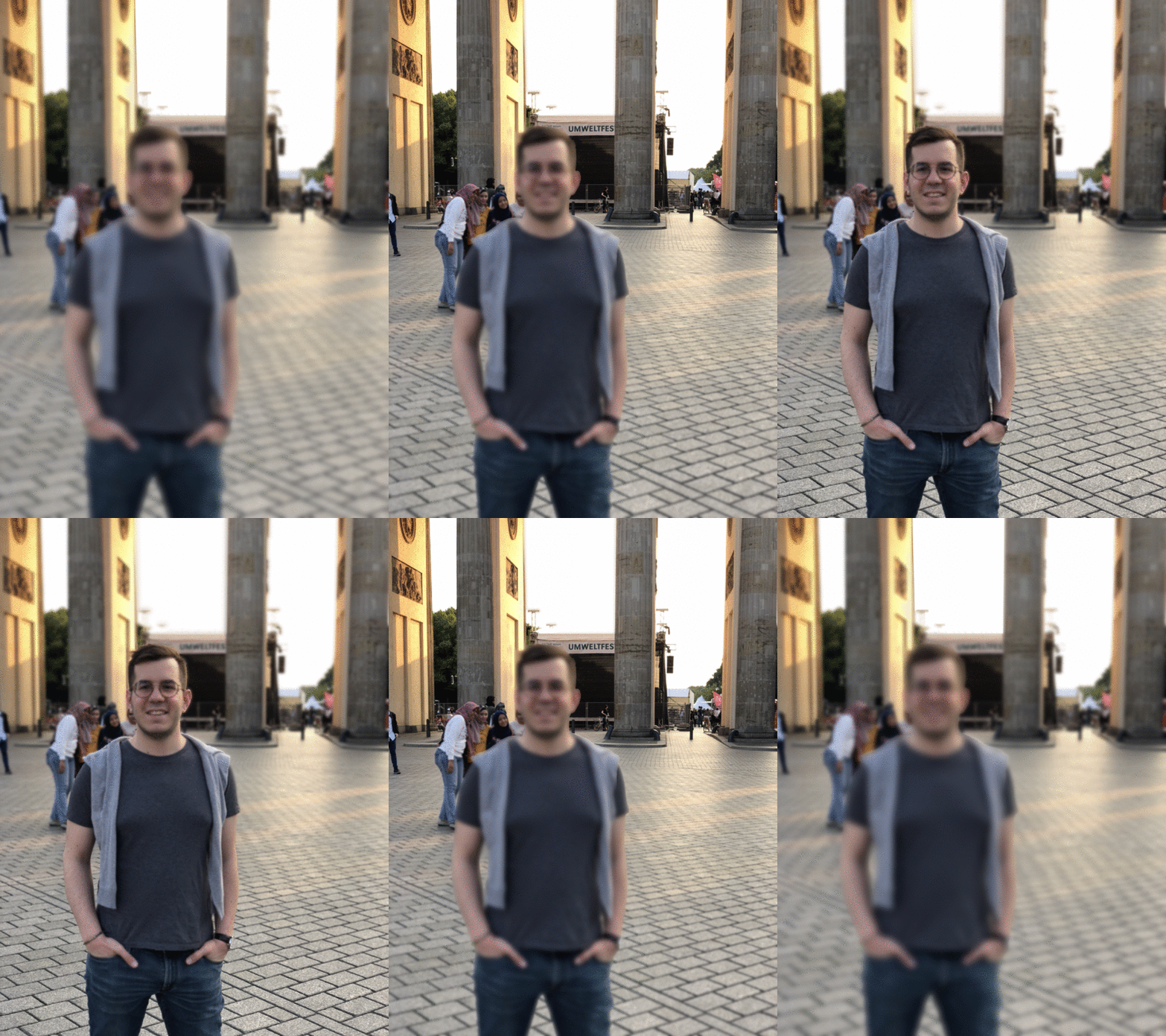
When that is done, the depth mask can be used either as a mask to composite a blurred image over the original, or (better) to vary the sigma of the blur (using "-compose Blur").
I tried to load your image into my Photoshop CC 2018 on my Mac OSX Sierra. But PS said my OS needed to be upgraded. So I suppose I would need High Sierra to utilize your image in PS.
Interesting. Yes, I am on High Sierra. I wonder if PS is using some libraries Apple provides (would make sense, to be honest, also considering that HEIF is covered by patents). I'll dig deeper and check if I can export the channel into PNG.
@snibo I was able to extract the depth map layer from the image into a PNG file (using libheif). Here it is: https://www.dropbox.com/sh/owbkv37go0vs ... kDSOa?dl=0 The folder contains the original HEIF file, the file converted to PNG (again, using libheif) and the depth map as PNG file.
Could you please show me how the "lens blur" would work here?
You will see that the background is now slightly blurry and varies by the shade of gray in the depth image. The depth map needs to be inverted (negate), since it gets blurred more where it is white and not blurred where it is black. Your depth image has the opposite polarity so I negated it.
I used Imagemagick 6.9.10.12 Q16 on my Mac OSX Sierra.
I didn't notice that the depth map was much smaller. Not sure why, and I will look into it. I tried enlarging the map with the command below, and while it works (and takes forever), the edges are a bit blurry. Anyways, this is beyond ImageMagick, and I really appreciate your help
talyPaleAle wrote: 2018-10-05T18:30:43-07:00
@snibo I was able to extract the depth map layer from the image into a PNG file (using libheif). Here it is: https://www.dropbox.com/sh/owbkv37go0vs ... kDSOa?dl=0 The folder contains the original HEIF file, the file converted to PNG (again, using libheif) and the depth map as PNG file.
Could you please show me how the "lens blur" would work here?
How did you extract the depth map layer? can you send me the code?
Even when I've been posting my own POST I wonder if someone here could help me out. Thanx in Adavanced
I got an iMac running Mojave, yesterday I successfully installed ImageMagick from Terminal; my question is . . How to create a HEIC file based on 2 JEPGs one with the image itself and the second JPG file with depth map; in order to build something like an iPhone Portrait file.
I tried this but didn’t work as I supposed it; anyway I gave it a try.